Transport Fever 3 No Path: Find the Broken Connection
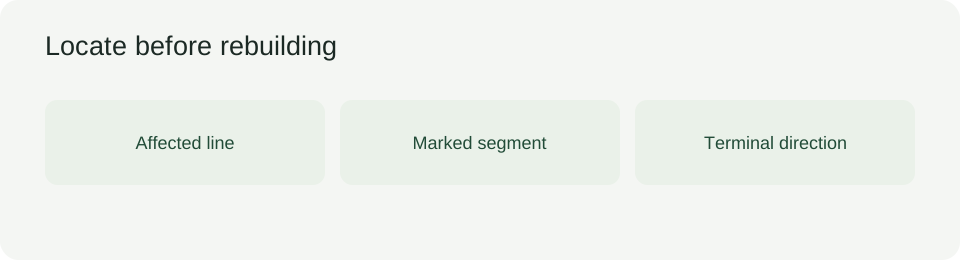
To find a broken connection in Transport Fever 3, select the affected line, inspect the marked segment, read its warning, and check whether the vehicle cannot enter or leave the selected terminal. If you see “No Path” on a greyed-out terminal with Disable Unreachable Terminals installed, treat it as a terminal reachability hint—not proof that the complete route, its waypoints and its signals have been checked.
Checked 11 October 2026. This is a check of documented interface behavior and mod conditions, not a personal gameplay test. The steps and worksheet are editorial troubleshooting guidance; results in your save remain to be recorded.
Locate a segment before changing the network
A network that looks continuous can still fail at a particular terminal or in one direction. Start with the line rather than rebuilding an entire station. Keep a separate save copy before experimenting.
- Open the line manager and select the problem line. The problem icon identifies affected lines; selecting a single line exposes its stops and segments in the lower area.
- Find the segment marked with a red exclamation mark. With mouse and keyboard, hover over the icon and record the detailed warning exactly as it appears.
- Select the stop or waypoint to highlight the segment immediately following it. Use that highlighted section to narrow your inspection; do not assume the defect is at the currently visible vehicle.
- Open Select Terminals. Check the arrow next to the affected terminal: does the problem concern reaching it from the previous stop, or departing toward the next one?
- Inspect that direction and its required stops. Revisit track or road changes and signal changes made before the warning appeared. Check whether the stop order contains the same station consecutively or a station belonging to a different carrier.
- For an alternative train terminal, inspect reachability from the last signal before the station—the terminal decision point. A connection to the primary platform alone does not establish that every enabled alternative is reachable.
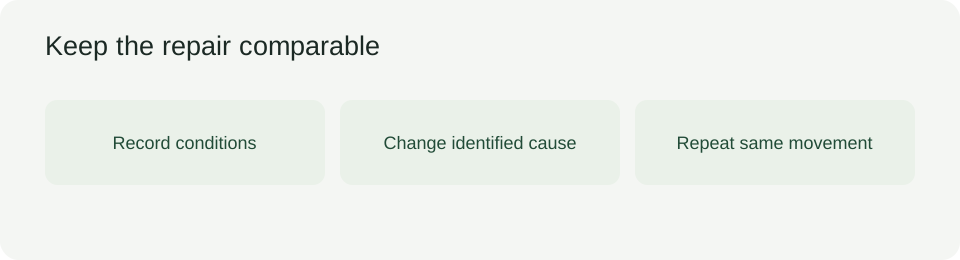
- Make a change only after identifying the relevant segment or terminal. Record the change and repeat the same check before moving on.
Dated conditions: which check actually applies?
The comparison below records what each check covers as of 11 October 2026. It contains no measured repair rate or invented build comparison. Record your installed game build separately: no minimum working game build has been established by this check.
| Checked date | Condition | What is covered | What is not established | Your next check |
|---|---|---|---|---|
| 11 Oct 2026 | Base line-management interface; mouse + keyboard instructions | Problem line, marked segment, detailed warning, terminal arrival/departure direction | Exact vanilla “No Path” wording and minimum game build | Copy the warning from your own interface |
| 11 Oct 2026 | Disable Unreachable Terminals; listing version 1.0 | Greyed-out unreachable terminals with a “No Path” tooltip; selection remains possible | A grey terminal is not an automatic repair or a complete route verdict | Compare the tooltip with the base line warning |
| 11 Oct 2026 | The mod on a line with no vehicles | No terminals are greyed out because the check needs line vehicles | No grey shading does not demonstrate reachability | Record vehicle assignment before interpreting the result |
| 11 Oct 2026 | The mod on a route containing waypoints | Track and road network reachability is checked | Waypoints are excluded from its check | Inspect required waypoint segments in line management |
| 11 Oct 2026 | The mod with signals or direction restrictions | Signals and driving direction enter its check once the game reports a problem for a terminal in use | A quiet tooltip is not an unconditional signal-direction check | Read the game warning and inspect the relevant direction |
| 11 Oct 2026 | Manual assignments or Auto Assign Terminals alongside the mod | Existing assignments are left unchanged | The mod does not automatically change assignments to resolve the fault | Inspect the chosen terminal and repeat the check after a deliberate change |
| 11 Oct 2026 | Controller or console use | Mod listing includes Xbox Series X/S and PlayStation 5 packages alongside desktop packages | Identical controller gestures, installed package revision and behavior in your save have not been personally tested | Record platform and revision; do not transfer the mouse-hover gesture literally |
“Checked” is the date this comparison was reviewed, not the date a fault started or a fix shipped. The package label 1.0 does not identify the installed game build. Keep those fields separate in the worksheet.
Why the two views can seem to disagree
A grey terminal and a marked line segment answer different questions. One hints at the terminal's reachability; the other locates a problem in the configured line. Neither display should erase the other from your record.
A line can include a waypoint that the terminal helper ignores. That makes a plausible-looking terminal list an incomplete check of the journey you actually configured. Inspect the required sequence before concluding that the route has no connection problem.
A line without vehicles gives another misleading comparison: the helper shows no grey terminals because it lacks the vehicles needed for its check. That empty result is not a successful test. Write “check lacks vehicle context,” rather than “all terminals reachable.”
Selectable does not mean suitable. A grey terminal remains selectable in case the helper's check is wrong, while your previous manual or automatic assignments stay in place. Changing the selection and observing the line again is a separate action from reading a tooltip.
Direction also matters. For a train's alternative terminals, use the last signal before the station as the starting point of the reachability question. An incoming path to one platform does not answer whether another platform works, or whether the next stop can be reached afterward.
Download a record you can actually use
Download the No Path troubleshooting worksheet (CSV). It includes the dated condition comparison, inspection prompts and a blank observation row. Open it in a spreadsheet or keep a copy beside your save.
For each attempted repair, record the platform, installed game build, mod name and installed revision, warning text, previous stop, affected terminal, next stop, required waypoint, arrival or departure direction, change made and repeated result. Leave unknown values blank. The supplied rows are prompts, not completed tests.
When is the connection repaired?
Repeat the original line and terminal inspection after the change. Then observe the relevant vehicle completing the formerly blocked movement through the required stops or waypoints. A changed tooltip alone does not establish that the original journey now works.
If the same movement remains blocked, keep the unsuccessful attempt in the worksheet and narrow the next check to the remaining condition. If it works, describe the result only for that line, terminal direction and recorded installation. Do not extend it to every vehicle type or platform.
Why did I miss a broken tram connection?
Use the warning window and the problem line's segment details as explicit inspection points, especially after infrastructure edits. Do not depend on noticing a vehicle stopped on the road. A missed warning and an absent connection are different problems: inspect the line first, then record what its warning actually says.
Once the journey works, the route-cost worksheet addresses the separate question of whether it is worth running. For a build-specific change, keep the dated game-state review beside the connection record. A profitable route still needs a path; a repaired path still needs its own cost calculation.
To place this specific question in the broader game assessment, compare it with the Transport Fever 3 review while keeping the conditions on this page separate.